Friday, January 30, 2009

Uploading multiple images photos


The Blogger post editor has a photo upload icon Blogger photo upload icon which when clicked upon will open the photo upload dialog window (see screen shot below):


Click CHOOSE FILE and select the image you want to upload from your computer, then tick the radio button for one of 4 layouts - none, left, center right. If you have only 1 photo to upload, then click UPLOAD IMAGE. If you have multiple images and you want the same layout for all of them, then click ADD ANOTHER IMAGE, in which case another CHOSE FILE button will appear. Chose your second image from your computer. Repeat for more images, and when you have finished selecting all the images, click UPLOAD IMAGE.

Related posts:
Adding images to your posts
How to delete photos
Make images a clickable hyperlink
Uploading and manipulating images
Uploading and manipulating images Part 2
Tip: Complete the alt="" for images
Using the Irfanview Photo Editor
SEO Tip: Upload images whenever you can


Peter Chen's nice graphic signature

Horizontal navigation menu bar table

Horizontal menu bar (navigation bar) is a frequent request of bloggers. There are many ways of doing it, including using CSS (Cascading style sheet) and <ul> (unordered list). Using table to create a horizontal menu bar (navigation bar) is a quick and dirty way like what has been done at Songs Lyrics Video. However, refer to Why tables are bad.

Menu bar with table

First, go to LAYOUT > EDIT HTML and look for showaddelement='No' and change it to showaddelement='yes'. If there is a maxwidgets='1' next to showaddelement='yes', change it to maxwidgets='' showaddelement='yes'

This will result in additional ADD A GADGETs to the Header section of the LAYOUT. If you are using either 3 column Minima template or the 4 column Minima template modified by me, that would already have been done and you will see a LAYOUT like the screen shot below:
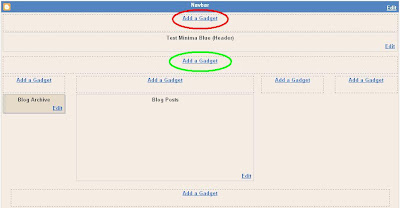
Blogger Layout with additional ADD GADGETs

The additional ADD A GADGETs are highlighted with red and green ellipses. Depending on where you want the menu bar to be position, click on either one. In the case of Songs Lyrics Video, I have chosen to positioned it within the Header, so I clicked the one highlighted with the red ellipse. I then chose HTML/Javascript gadget and typed the following (formated for easy reading):

<table border="1"><tr>
<td><a href="URL 1">tab 1</a></td>
<td><a href="URL 2">tab 2</a></td>
<td><a href="URL 3">tab 3</a></td>
..................
..................
..................
</tr></table>

You can add as many ........ as you like.

Saturday, December 13, 2008

Screenshot of Youtube embed script

Previous posts on Youtube videos are Testing embedding video in Blogger, Embed Youtube video in Blogger and Embed Youtube video in sidebar. However, a reader could not figure out what script to use for embedding, thus the screen shot of a video from Beginners learning line dancing below (click to enlarge):

Youtube video embed script

The script to use for embedding is highlighted in blue on the right side of screenshot with the arrowhead of the mouse cursor pointing to it. The actual script I put in the scroll box below for your reference:


Peter Chen's nice graphic signature

Saturday, November 22, 2008

Translator for blog

It is good to add a translator to your blog as it will make it easier and more pleasant for your blog readers who is not proficient in English like in the top of the right sidebar of Blogger Tips and Tricks. It is very easy to do. Just click on the scroll box containing the codes below, press ctrl+A to highlight all the codes, press ctrl+C to copy the codes into clipboard, open a HTML/Javascript gadget and paste the codes into the HTML/Javascript gadget


Peter Chen's nice graphic signature

Saturday, November 15, 2008

PageRank Checker for your blog

I normally use Google Toolbar for checking PageRank of my own blogs as well as other websites. However, a blogger complained that you can't install Google Toolbar for a MAC. An alternative is to use the PageRank Checker which you can find at the footer (bottom of blog) of Songs Lyrics and Video. Just type or copy-paste the URL into the box and click CHECK PR.

If you are only interested in your own blog, you can get the PageRank of every page of your blog by installing the PageRank Checker into your blog like the one you can find at the bottom of the left sidebar of Natural Remedies. Copy-paste and save the following codes into a HTML/Javascript Gadget for your blog:


Peter Chen's nice graphic signature

Sunday, June 8, 2008

Reset Widgets Page Elements: Symtoms - No comments link, missing author signature, etc.

SUMMARY BE
first step is to make sure that all settings are correct.
Is Javascript enabled?
Is blogger posting in any particular fashion? e.g. browser, template tweak? blog URL? Plugins?
===================
GOOD NEWS
problem is in post template
Reset Page Elements - go to template, Edit HTML, Take out Page Element code which look something like this
.................
>div id='main-wrapper'>
>b:section class='main' id='main' showaddelement='no'>
>b:widget id='Blog1' locked='true' title='Blog Posts' type='Blog'/>
>/b:section>
>/div>
................


...................
Save changes OK to delete widgets
Upload backup template or fresh or new template
put the
exact code you just removed back where it originally was

Add backk Page Elements
Preview if OK save
Page Elements RESETTED


Peter Chen's nice graphic signature

Saturday, May 10, 2008

Blocked accounts: what to do when wrongly identified as Spam blogs

Google Blogger is very generous in providng this free service but it is abused by spammers who create millions of spam blogs or splogs which has no useful content and only created to earn money for the creators or for other purposes. They uses up resources and create problems not only for Blogger, for search engines, but also for genuine bloggers like you and me. The draw traffic away from us via especially the "Next blog" link in the navbar (missing in this blog as it had been hidden but you can see it as a dark blue bar at the top of Blogger Tips and Tricks). I will publish a post about the usefulness of this navbar sometime in the future.

Blogger is forced to use robotic programs to hunt these splogs, disable or delete them. Unfortunately it is a sad fact that robotic programs are often not infallible and can make mistakes (false positives) and identify yours or my blogs as splogs. A few of mine and those of my readeres had so been misidentified and owner either be required to complete word verification (captcha) inorder to publish a post:

word verification or captcha

where you are shown a graphic set of text and you have to type what you see into a field (box) to complete the word verification (to verify you are human as robots will not be able to do it), then publish. In most cases, you will be prevented from publishing or even from access to the blogs.

Normally in such cases, an alert email is sent to the email address you used to register the blog plus you will get this. Anyway, if you have been neglecting the blog and the email address, there is a chance your blog will get deleted after a certain period of time but it is still possible for you to get it back if you still want it, probably with all your old posts and comments intact.

Normally, it will take a few days for your blog to be cleared. In one very rare case, a lady got it cleared with the same day it was reported. Some of my blog took very long, and if you are not patient, you can report it to

spam appeals.

Peter Chen's nice graphic signature

Older Posts